

Copilot Teammates
A teammate is an AI helper you set up for one kind of work, such as running your week, editing in your brand voice, or keeping family plans straight. Each teammate has its own instruction, remembers the rules you give it, and keeps its own chats, so personal and business stay apart.
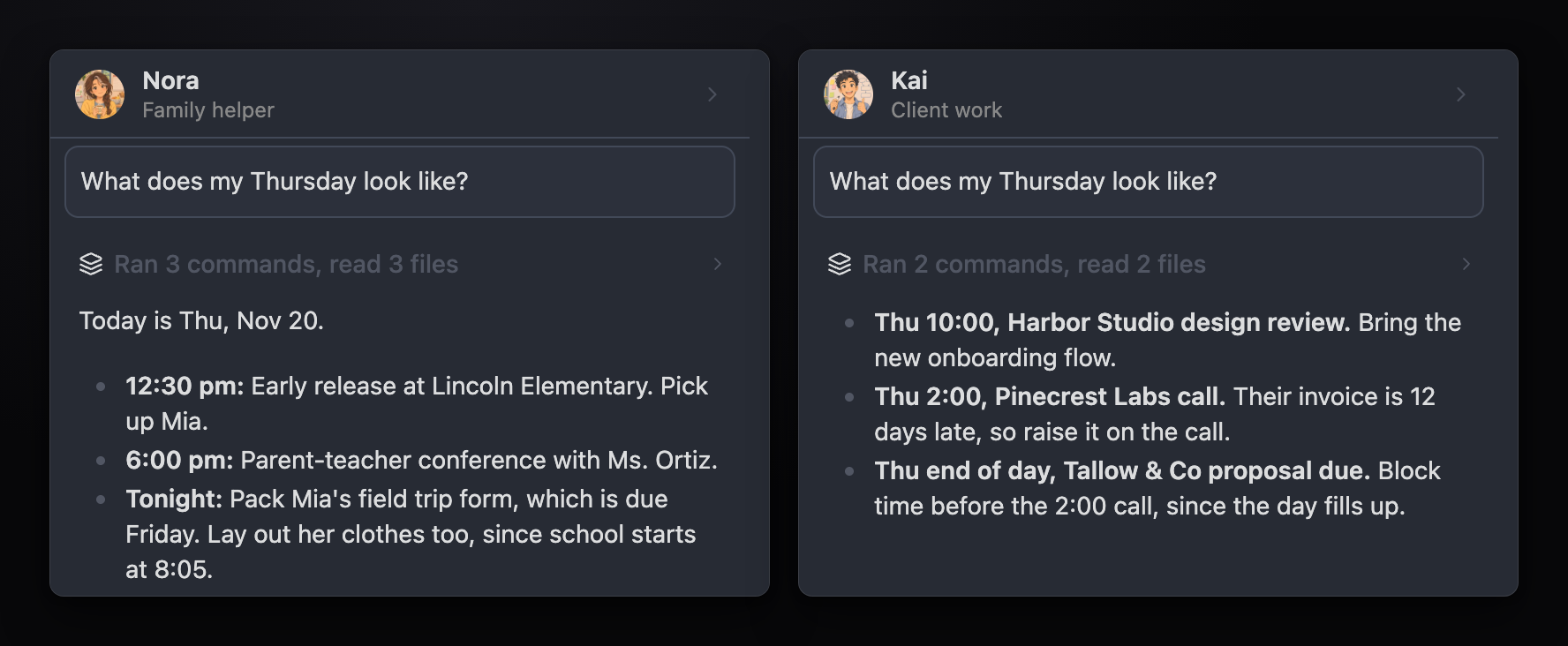
Copilot Teammates is a preview for Supporters and works in Copilot Chat on desktop. Without a Supporter license, New on the start screen shows a lock; click it to see plans or enter your license key.
Make a teammate yourself
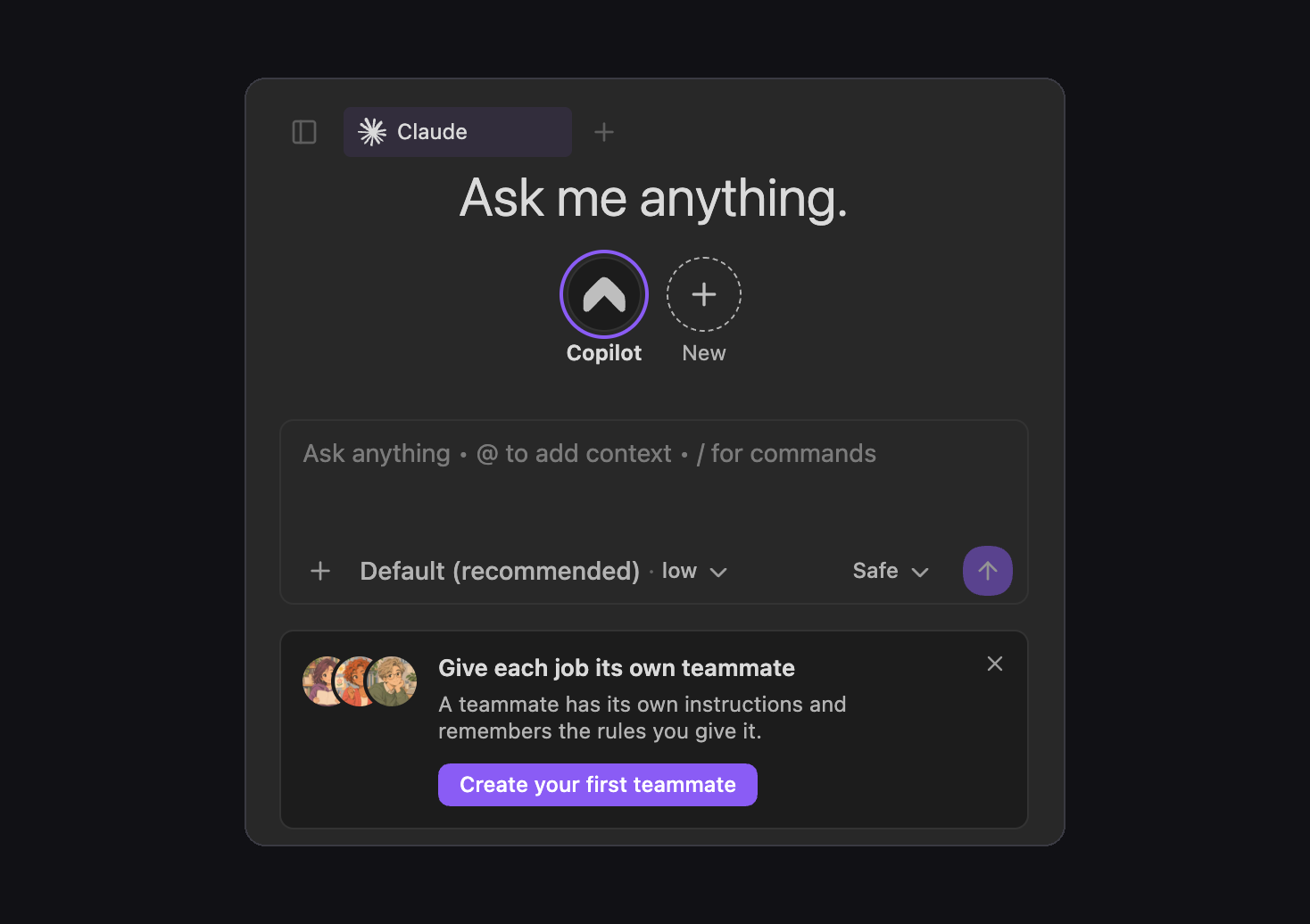
Section titled “Make a teammate yourself”- Open Copilot Chat. On the start screen, click New (+) next to the faces, or Create your first teammate.
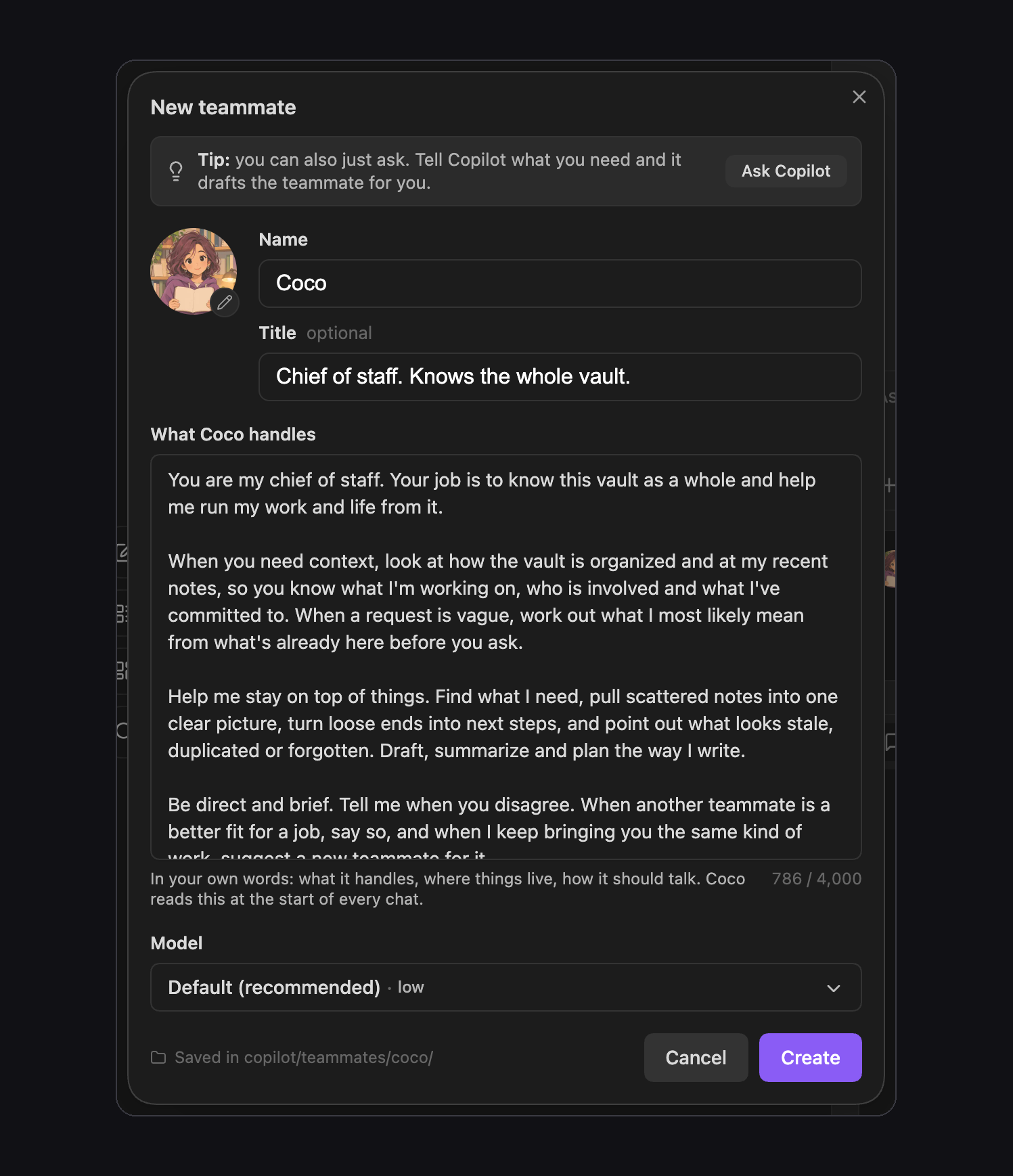
- Fill in Name, an optional Title, and What name handles: in your own words, what the teammate does, where things live in your vault, and how it should talk.
- Click the face to pick another one, or Upload image to use your own.
- Pick a Model, then click Create.
The first time, the dialog is filled in as Coco, a chief of staff who knows your whole vault. Change anything you like, or click Create as is.
Make a teammate from a chat
Section titled “Make a teammate from a chat”You can also describe the teammate in any chat and let Copilot or a teammate write it for you.
- Send a message such as “I need a writing editor called Maya who cuts AI slop from my posts.”
- A New teammate draft card shows the name, title, and instruction. Ask for changes in the chat and the card updates.
- Click Review and create…, check the dialog, pick a face and a model, and click Create.
Nothing is created until you click Create. Not now removes the card.
Talk to a teammate
Section titled “Talk to a teammate”On the start screen, click the teammate’s face and send a message. You can also run Start a chat with a teammate from the command palette.
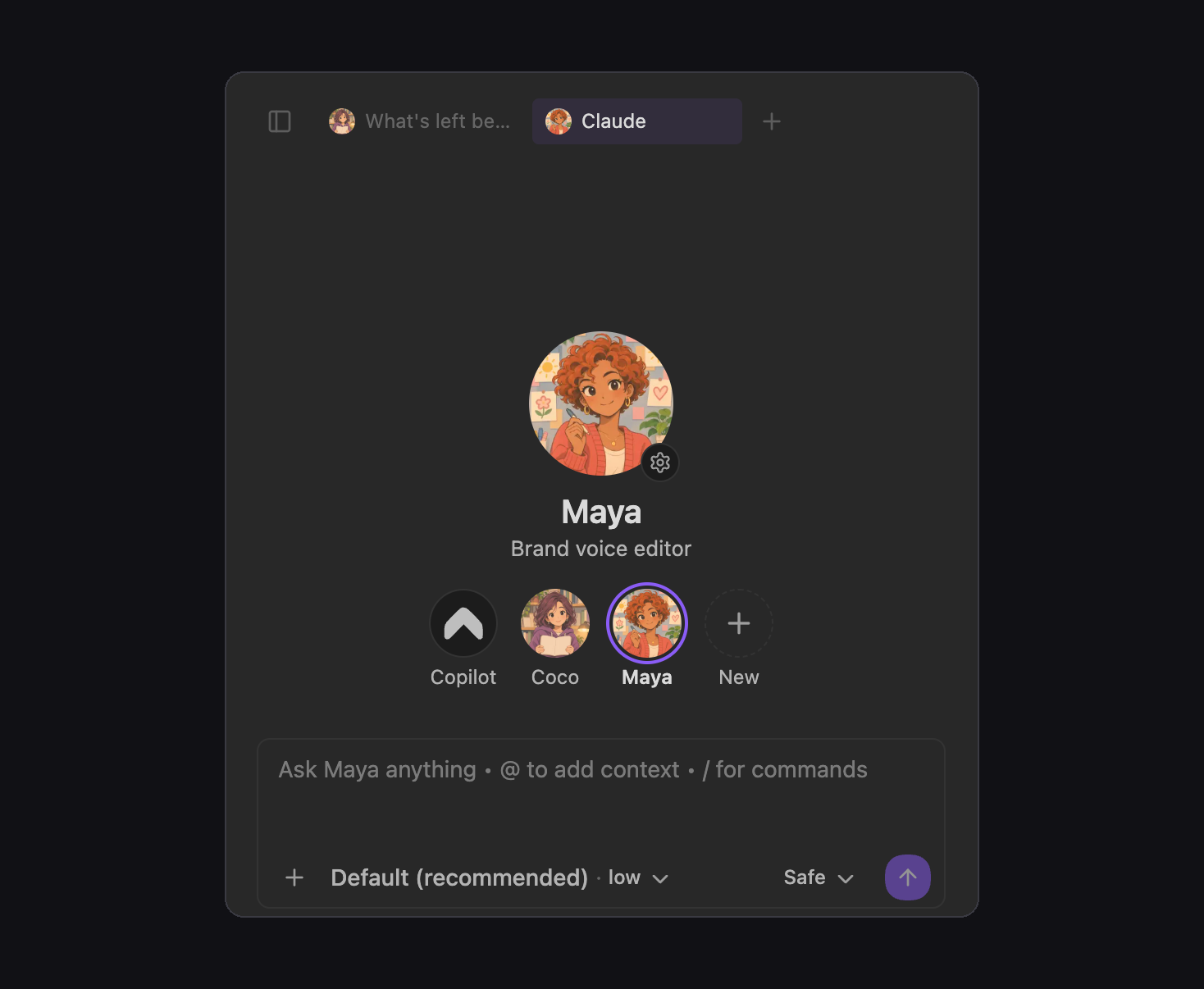
The chat shows the teammate’s face, name, and title at the top, so you always know who you’re talking to. With a teammate picked, Recent chats lists only that teammate’s chats. A new chat starts with the teammate you used last; click Copilot for a chat with no teammate.
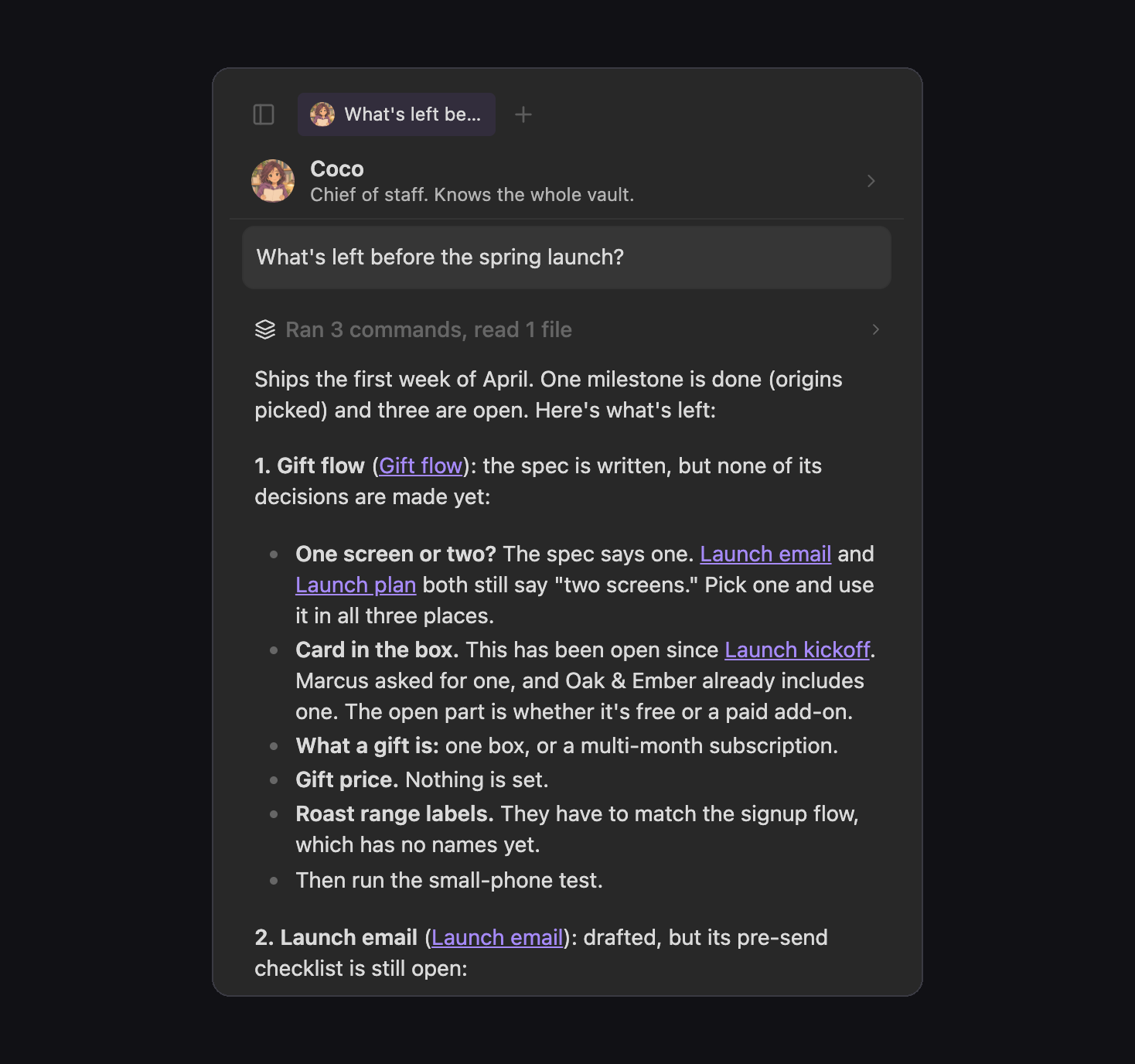
Get a second opinion
Section titled “Get a second opinion”Type @ and a teammate’s name in any chat to ask that teammate, for example @Maya does the launch email sound like us?. Teammates are listed under Teammates in the @ menu.
- The teammate you’re chatting with shows Messaged with the other teammate’s face, and you can keep chatting while it works.
- When the reply is ready, Message from shows, followed by the reply and your current teammate’s own view.
- Click Messaged or Message from to read the whole exchange between the two teammates.
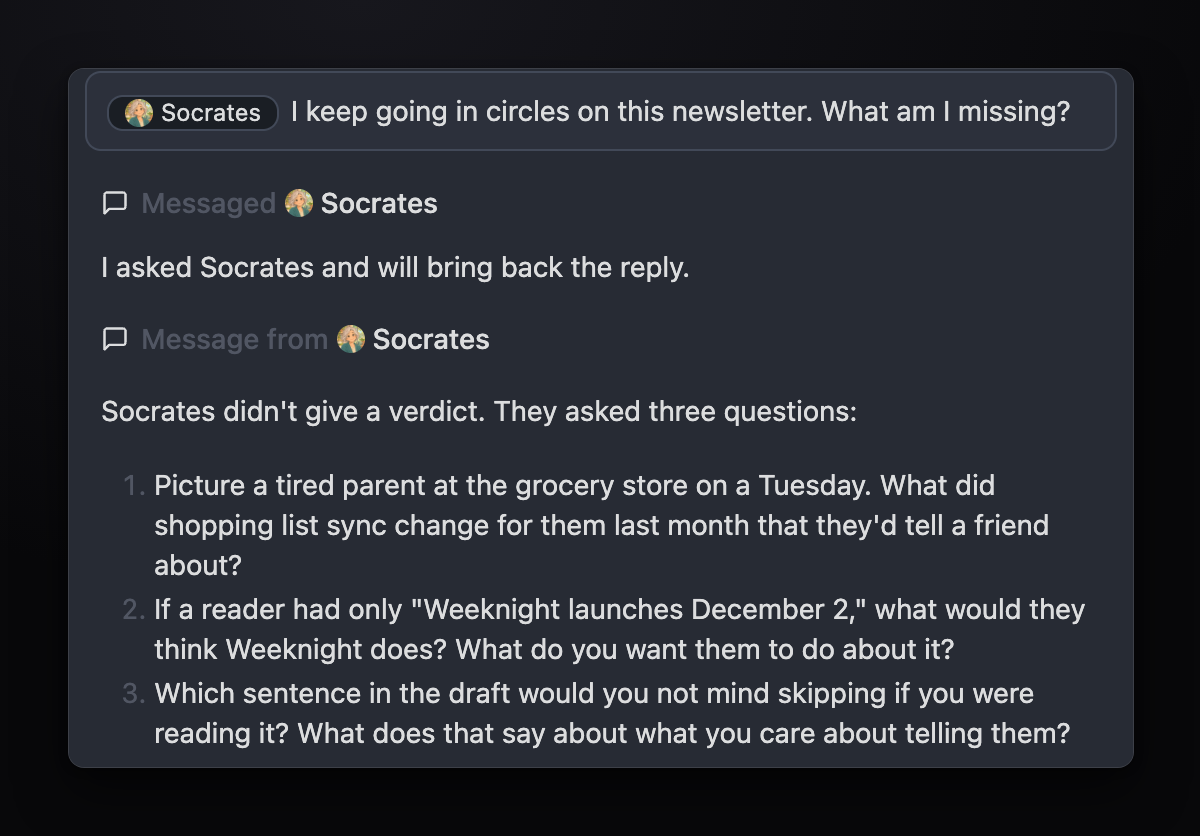
A teammate answers in its own way. Socrates, for example, asks questions instead of giving a verdict:
More you can do:
- Ask several teammates at once:
@Maya @Leo does the $8k launch budget hold up? - Follow up: mention the same teammate again in the same chat and it picks up where it left off.
- Check in: “How’s Maya doing?”
- Change course or stop: “Tell Maya to skip the outro.” or “Tell Maya to stop.”
Ask a teammate to remember
Section titled “Ask a teammate to remember”Tell the teammate a rule in plain words, such as “Remember this: when you list open work, put an owner next to each item.” The chat shows name remembered with the rule. Click it to see the whole rule, then click MEMORY to open the teammate’s memory at that rule.
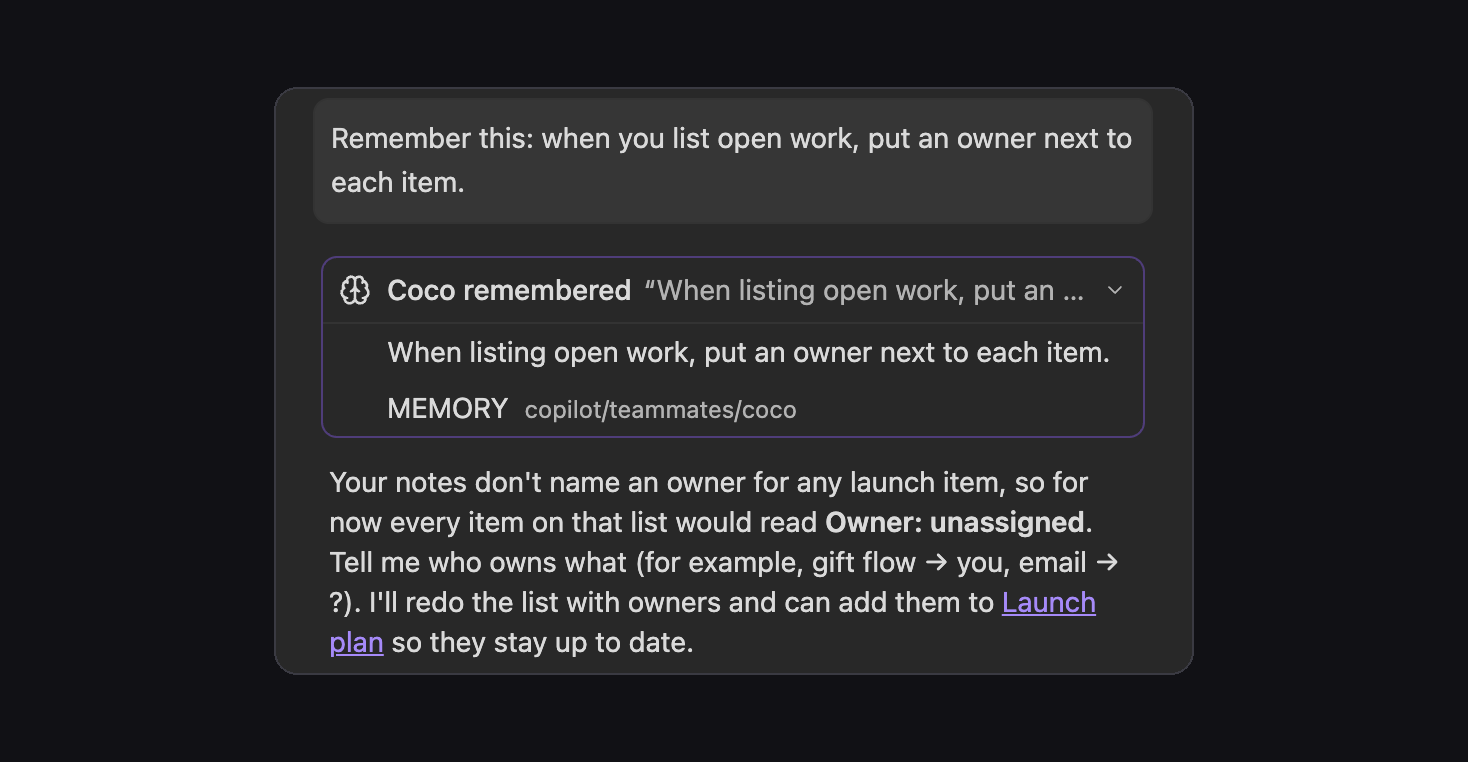
- The teammate follows the rule from its next chat.
- To change a rule, say the new one, such as “Stop with the bullets. Write summaries as short paragraphs.” The chat shows name replaced a rule.
- You can also give a rule through a mention:
@Maya from now on, flag video length first. - In Plan mode, teammates don’t save rules.
To see or edit every rule, open the teammate’s profile and click Rules name remembers.
Update a teammate’s instruction
Section titled “Update a teammate’s instruction”The instruction is the description the teammate reads at the start of every chat. Only you change it.
- Click the teammate’s name at the top of its chat, or the gear on its face on the start screen, to open its profile.
- Click What name handles. The instruction opens as a note.
- Edit the note.

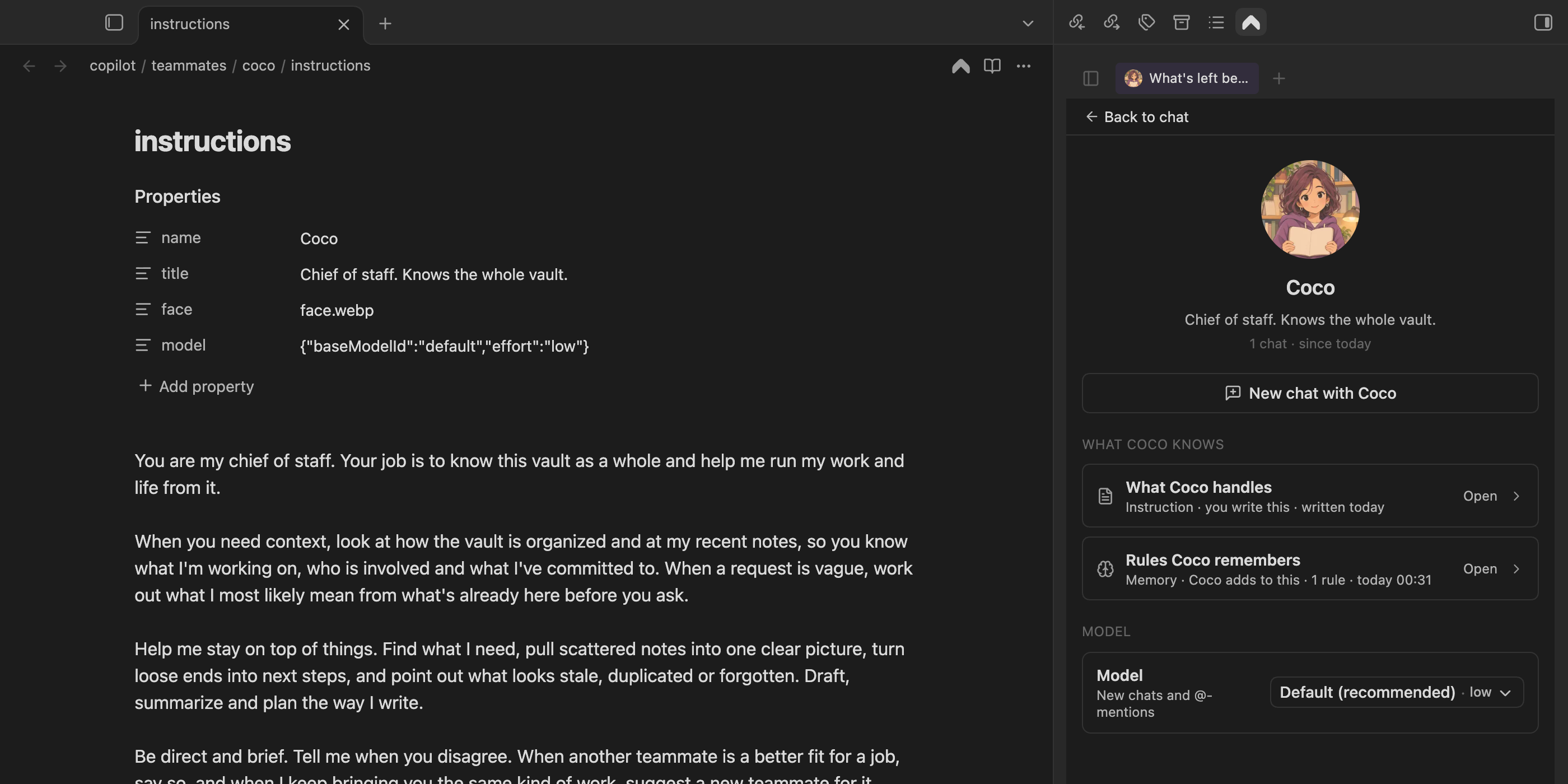
New chats use the new instruction; chats already open keep the one they started with. If you ask a teammate to change its own instruction, it replies with an Open instruction link instead. Keep the instruction under 4,000 characters; the profile shows it in orange when it’s longer than the teammate follows well.
On the profile you can also rename the teammate, change its title, face, and model, start a New chat with name, or delete it. Deleting archives the teammate’s chats; you can find them under View archived.