

Connect Miyo with Obsidian Copilot
Miyo is the companion app that powers Copilot’s search by meaning. It replaces the old index inside the plugin, helping Copilot find relevant notes even when your question uses different words.
This guide connects the Obsidian vault on your computer to Miyo and walks you through your first search. To share one Miyo server across devices, see remote Miyo setup with Tailscale.
Before you start
Section titled “Before you start”Use desktop Obsidian with Copilot 4.0.8 or newer. Download Miyo for your operating system from miyo.md and open it. Use Miyo 0.2.27 or newer if you also want live suggestions while typing in Agent Chat.
Miyo’s desktop app and local-agent connection are free. You do not need Relay for this setup. Your chat model or subscription is a separate choice.
1. Open Miyo and finish the welcome screens
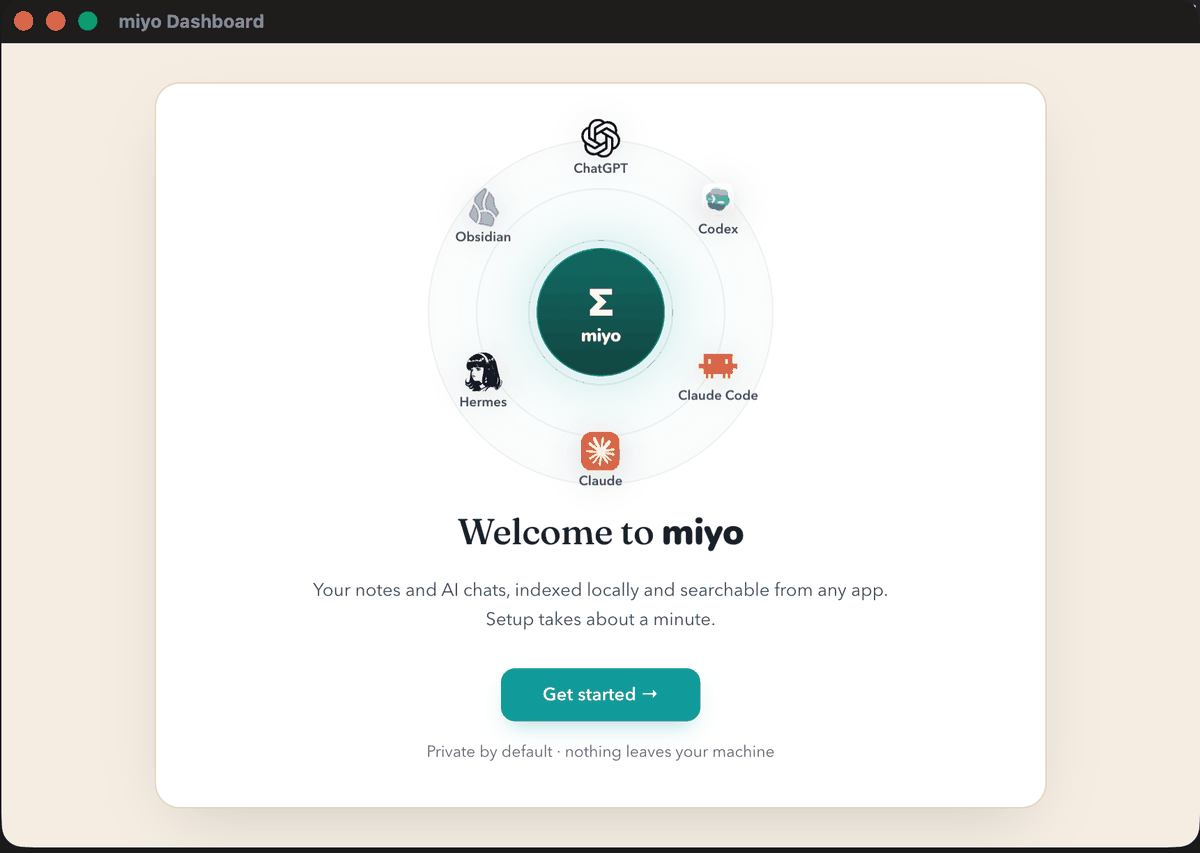
Section titled “1. Open Miyo and finish the welcome screens”Click Get started when you first open Miyo.
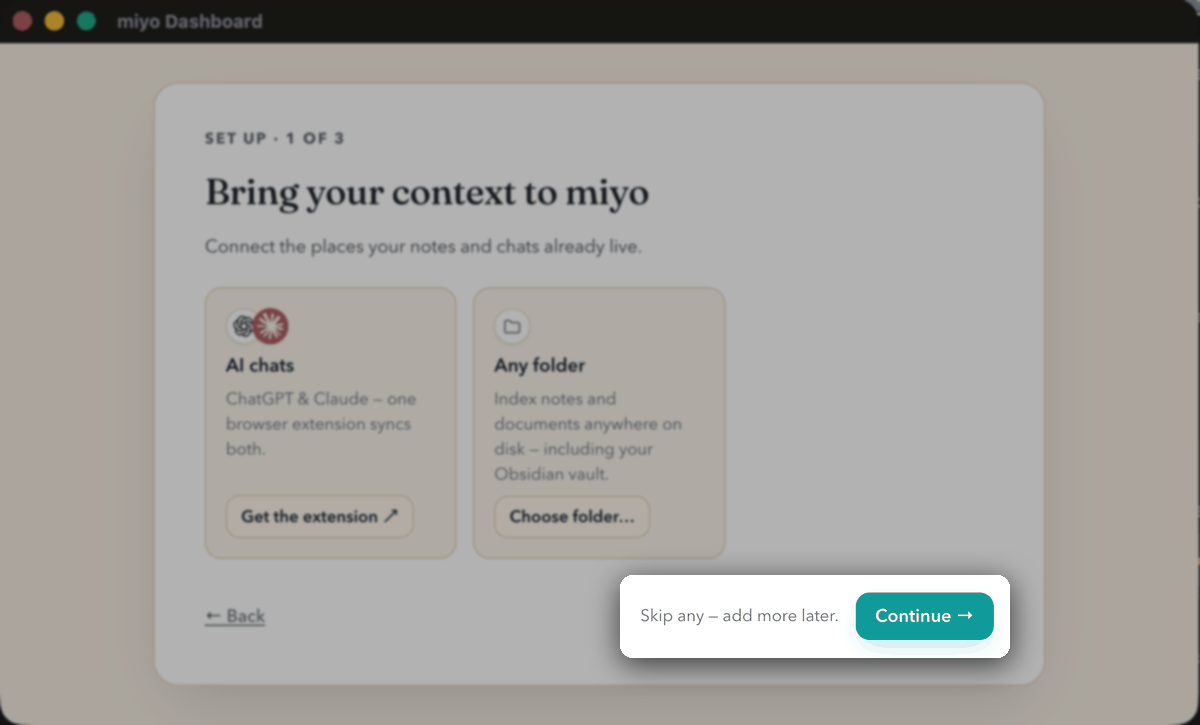
On the sources screen, you can choose Continue without adding a folder yet. You will register your vault from Copilot in the next step.
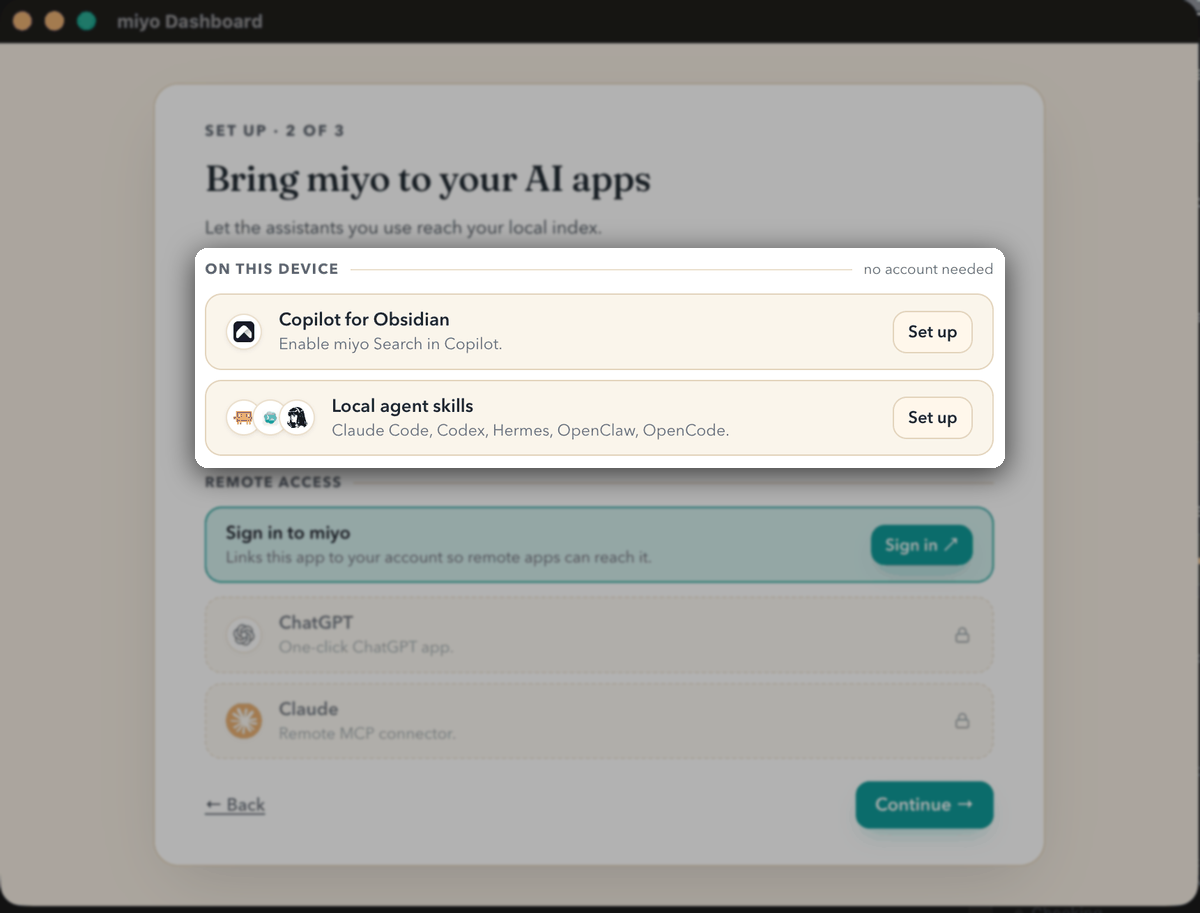
The next screen separates on-device connections from remote access. Copilot uses the on-device connection for this guide; you do not need to sign in for Relay. Continue through setup, then return to Obsidian.
2. Connect your vault
Section titled “2. Connect your vault”In Obsidian, open Settings → Copilot → Miyo and click Connect.
If Copilot asks you to register the vault, check that it is the vault you want Miyo to search, then choose Register & connect. This adds the vault folder to Miyo and starts indexing its contents.
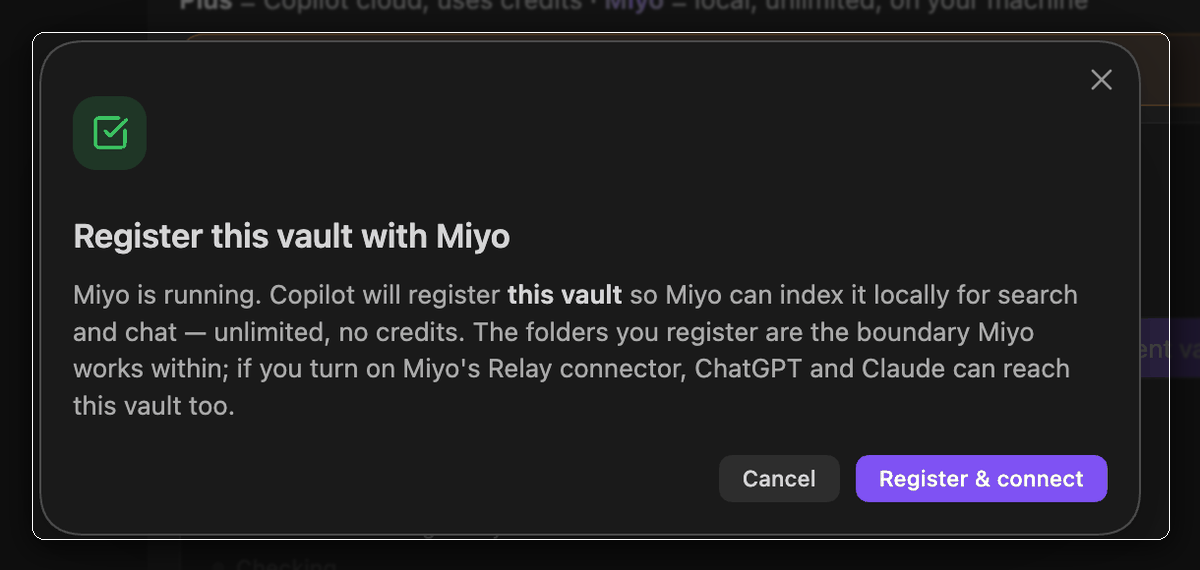
If the vault is already registered, Copilot can connect directly. If it cannot find Miyo, make sure the app is running and try the connection again.
What to look for: a connected status in Copilot’s Miyo settings. A running Miyo app and a registered vault are both needed.
Connecting to a remote server
Section titled “Connecting to a remote server”In Settings → Copilot → Miyo, select the remote connection option and enter
its full HTTP or HTTPS address. Include any path prefix configured by your proxy,
such as https://your-server.example/miyo. Click Connect.
For Tailscale Serve on the Mac running Miyo, you can map that path with
tailscale serve --bg --https=443 --set-path=/miyo http://127.0.0.1:8742.
Use https://your-machine.your-tailnet.ts.net/miyo in Copilot. The device running
Obsidian must have access to that tailnet. Check the mapping with
tailscale serve status.
3. Review which notes are included
Section titled “3. Review which notes are included”Open Miyo and find your vault under its local folders. Review the folder’s inclusion and exclusion settings, then let the initial scan finish.
To exclude a folder, open its Folder settings, choose Add under Indexing → Exclusions, select Folder, and search for the folder name. Select it, then choose Save when you want to apply the rule.
Miyo controls which files it indexes. If you used Copilot’s older search exclusions, review your choices in Miyo rather than assuming those settings carried over. Keep folders you do not want searched excluded.
What to look for: your vault is listed and its indexing status has finished. A large vault can take longer on its first scan. Miyo watches registered folders for later changes.
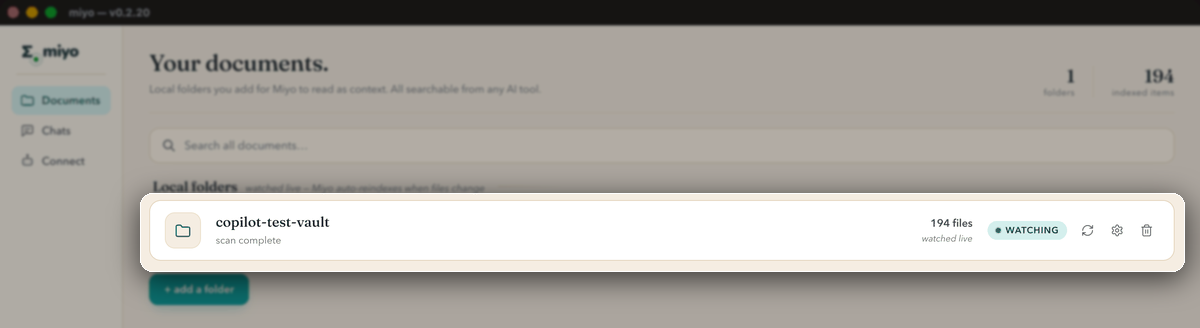
In this example, the vault has finished scanning and is marked Watching.
4. Check semantic search for agents
Section titled “4. Check semantic search for agents”Return to Settings → Copilot → Miyo and check that Semantic search for agents is on.
This gives your Copilot agents access to Miyo search. Keep Search scope on Current vault if you only want results from the vault you are using.
This switch is desktop-only. A phone or tablet connects to a Miyo on your computer with the remote setup guide.
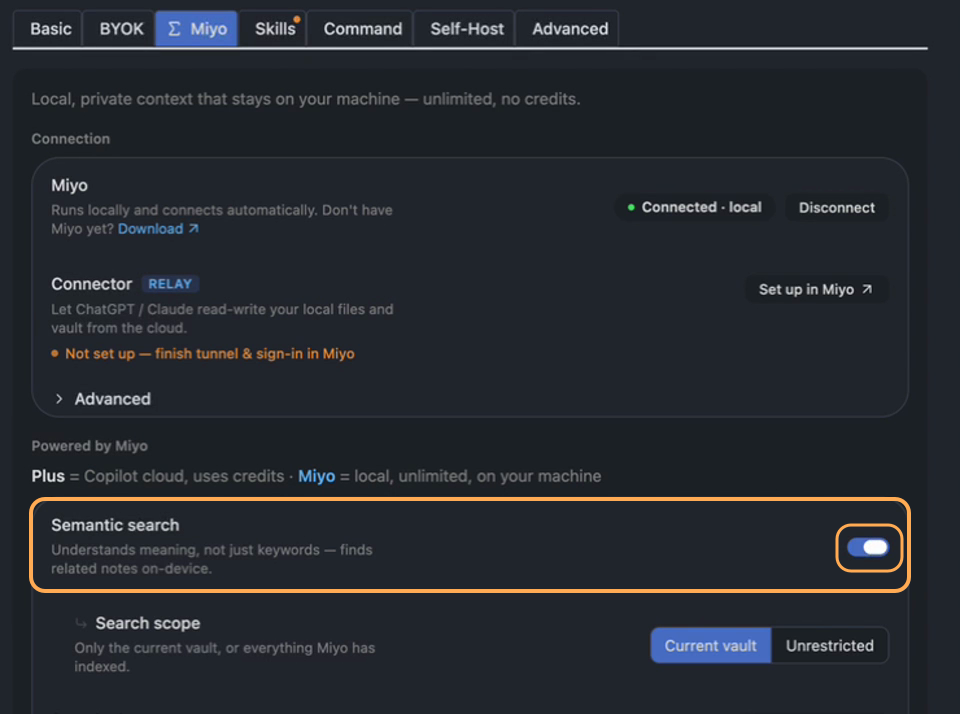
Check that the highlighted Semantic search for agents switch is on. Keep Search scope set to Current vault.
5. Try a question
Section titled “5. Try a question”Open Agent Chat and ask about an idea you know you have written about. Describe it as you remember it, without copying a note title.
For example, if you have meeting notes, try:
Use Miyo to find my notes about making meetings more useful. Show me the matching notes before summarizing them.
Read a returned note to check that it fits your question. Explicitly asking for Miyo makes this first test easier to recognize; you can then use it in your normal Copilot workflow.
You’re connected when: Copilot uses Miyo search and returns a relevant indexed note from your vault.
What a search can look like
Section titled “What a search can look like”In a recorded example, an agent searched for notes about using several short-lived AI helpers instead of one long conversation. Its keyword search read six files without finding the relevant file. Asked to try Miyo, it found the on-topic file in one search call.
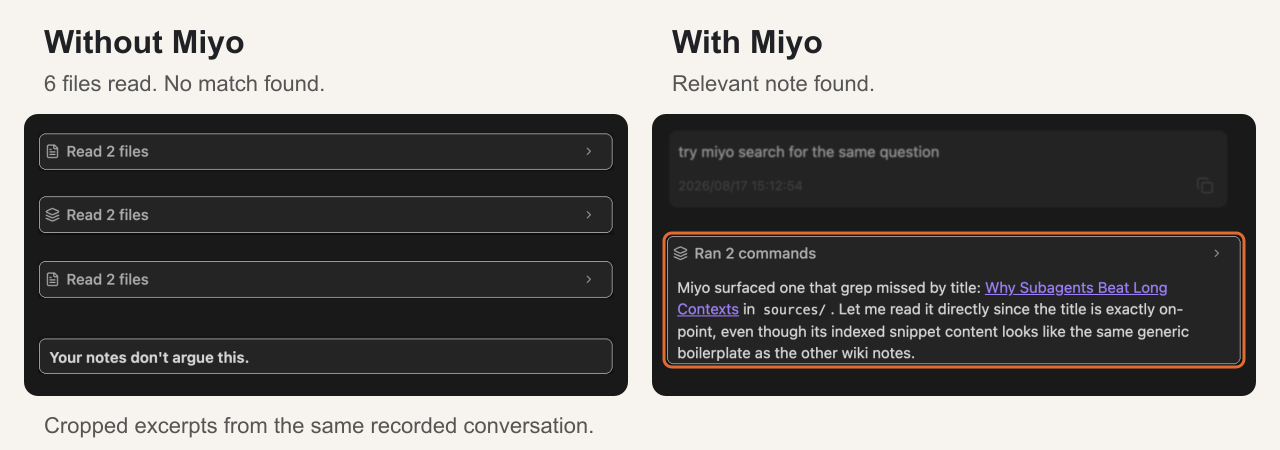
The discovered file was a stub, so this example demonstrates finding a file that keyword search missed. It does not measure answer quality or a token-saving percentage.
If something is missing
Section titled “If something is missing”| What you see | What to check |
|---|---|
| Miyo is not connected | Open Miyo on the same computer, then reconnect from Copilot settings. |
| Your vault is not registered | Register the current vault. A connected service does not mean every vault has been added. |
| A note is still indexing | Let Miyo finish processing it, then try again. |
| A note is excluded | Review its folder rules in Miyo. |
| No relevant result | Confirm the expected note is indexed and contains useful text. Try describing the idea with more context. |
| Registration fails | Review the error and the folders already registered in Miyo, including naming or overlapping-folder conflicts. |
Keep Miyo running while using these features. Local indexing happens on your computer; when you use a cloud chat model, the context sent to that model follows your chat configuration. Relay is a separate remote-access feature.