

Use one Miyo server from several devices
Run Miyo on one computer and connect Copilot on your other devices to that same server through Tailscale. The host keeps the index and answers searches; each client uses the same HTTPS address.
Before you start
Section titled “Before you start”- Choose a host computer that can stay awake with Miyo running. Add the folders you want to search and let indexing finish. The local Miyo setup guide explains folder registration and indexing.
- Install Tailscale on every participating device, including the Miyo host, and connect them to the same Tailscale network. Your network’s access rules must allow clients to reach the host.
- Use Copilot on each client. For Miyo searches in Agent Chat, install the Miyo desktop app on each desktop client too: Copilot uses its local command-line tool to contact the remote server. Only the host needs to run the server and maintain an index.
Tailscale gives the devices a private connection. It does not copy your notes or synchronize Miyo indexes. Keep your vault files synchronized separately if you want the same notes available in Obsidian on each device.
1. Find Miyo’s port on the host
Section titled “1. Find Miyo’s port on the host”Open Miyo on the host and confirm that the folders you need have finished indexing. Miyo records its current local port in a small file named service.json.
On macOS, open Terminal and run:
cat "$HOME/Library/Application Support/Miyo/service.json"Read the number beside "port". On other systems, open the file at the corresponding location:
| Host system | File location |
|---|---|
| Windows | %LOCALAPPDATA%\Miyo\service.json; if absent, check %APPDATA%\Miyo\service.json |
| Linux | ~/.config/Miyo/service.json |
If the file is missing, open Miyo and wait for its server to start.
The command below uses 8742 as an example. Replace it with the port your running Miyo server actually uses.
2. Share that server through Tailscale
Section titled “2. Share that server through Tailscale”On the Miyo host only, open a terminal and run:
tailscale serve --bg --https=443 --set-path=/miyo http://127.0.0.1:8742Tailscale Serve forwards requests from /miyo on the host’s HTTPS address to its local Miyo server.
Check the resulting address:
tailscale serve statusCopy the HTTPS address and include /miyo. For example:
https://your-miyo-host.your-tailnet.ts.net/miyoUse the address printed for your host. Keep both Miyo and Tailscale running there. Run the tailscale serve command only on the computer running Miyo. On your other devices, connect to Tailscale and use that computer’s HTTPS address in Copilot.
3. Connect Copilot on each device
Section titled “3. Connect Copilot on each device”On every device where you use Copilot, including phones and tablets:
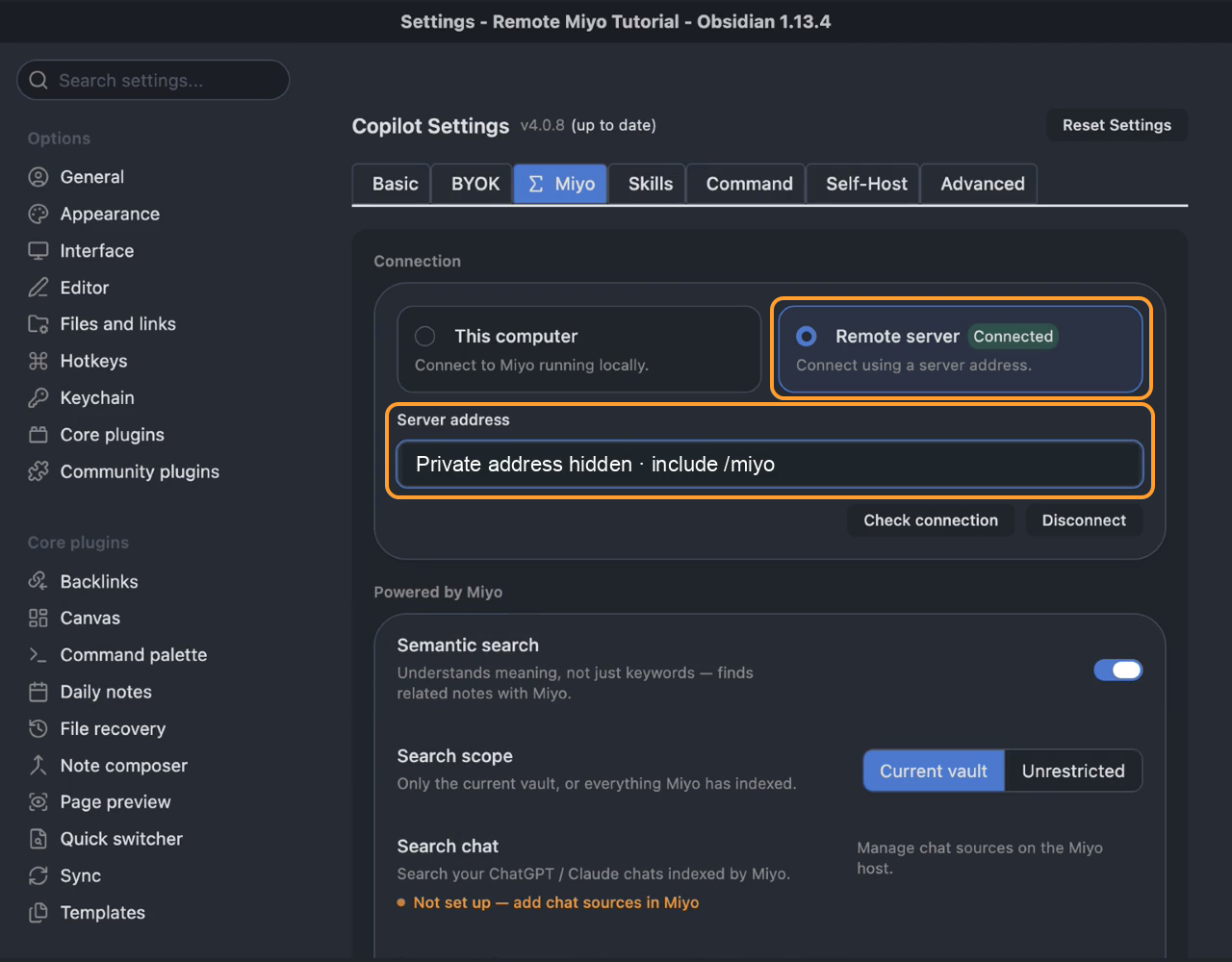
- Open Settings → Copilot → Miyo.
- Select Remote server. On mobile it is the only option.
- Paste the full HTTPS address, including
/miyo, into Server address. - Click Connect and look for Connected on the Remote server card.
Use Remote server with the same URL on the host computer too. This gives synced Copilot settings one consistent address and keeps every client pointed at the shared Miyo service.
The highlighted areas show the Remote server selection and server address. The private address is hidden.
4. Check a search
Section titled “4. Check a search”In Copilot’s Miyo settings, turn on Semantic search for agents. Keep Search scope → Current vault when searching the vault open in Obsidian. This switch is desktop-only; on mobile, check the search in Copilot Plus chat or Relevant Notes.
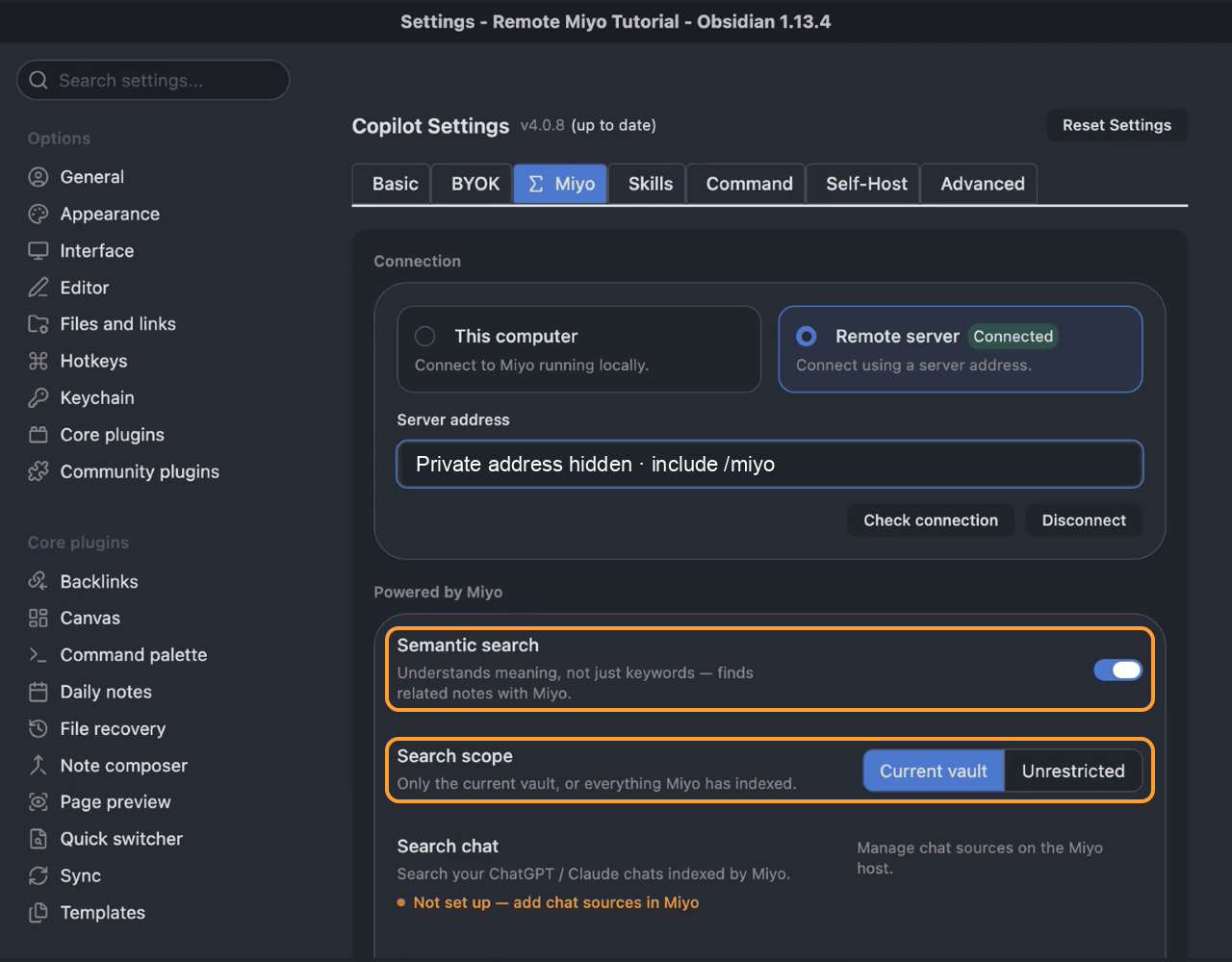
For Current vault searches, the vault’s name must match the folder name registered in Miyo. Notes must also use the same paths within that folder. The vault’s full disk location may differ between devices. A note returned by Miyo must exist in the client’s vault to open there.
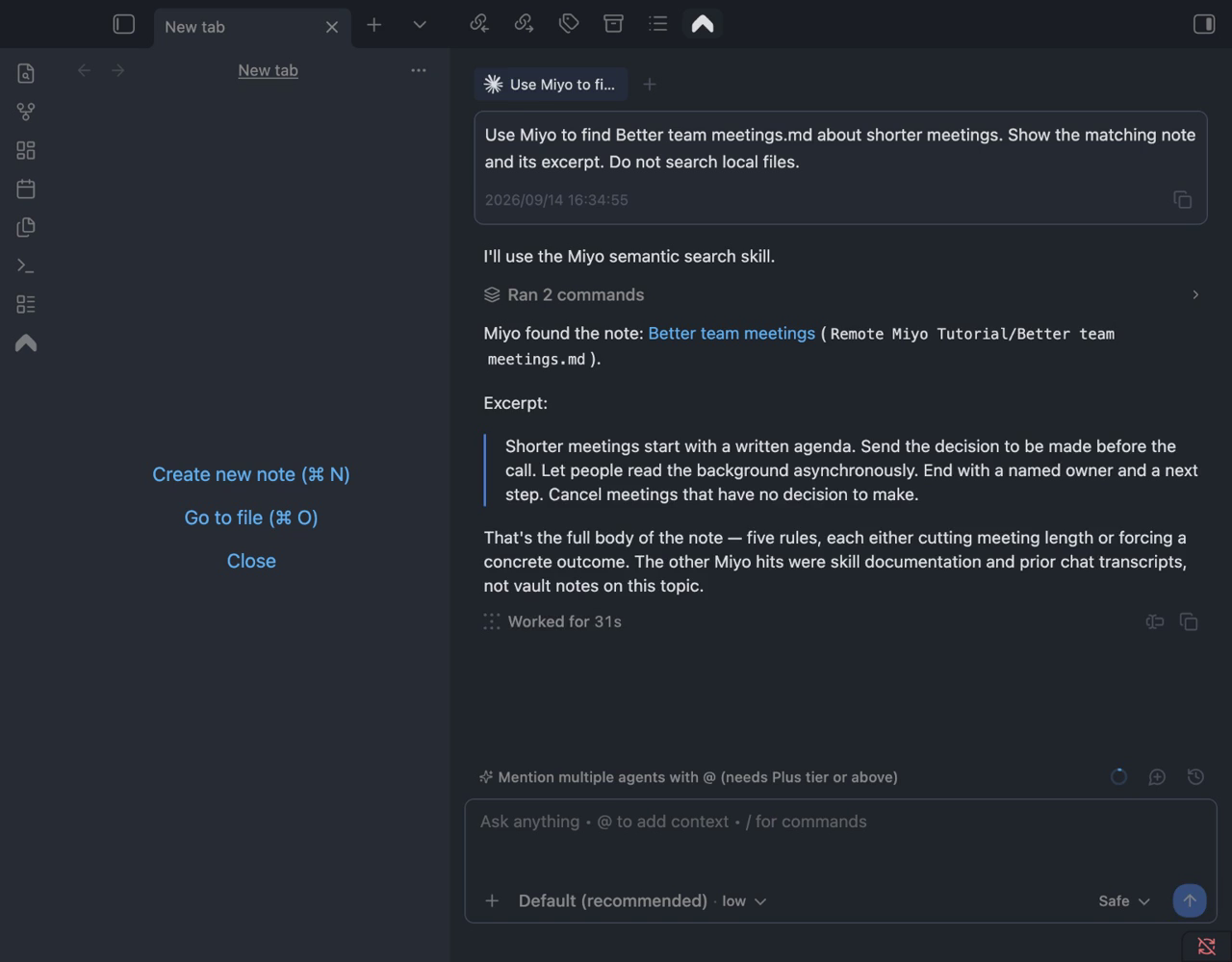
Open Agent Chat and ask about a note you know is indexed on the host. For example:
Use Miyo to find my notes about making meetings more useful. Show me the matching notes before summarizing them.
Check that the returned note is one you expected. Unrestricted searches everything Miyo has indexed; choose it only when that wider scope is what you want.
In this example, a Miyo search returns Better team meetings.md and the expected excerpt.
If the connection or search fails
Section titled “If the connection or search fails”| What you see | What to check |
|---|---|
| Copilot cannot connect | Confirm that both devices are connected to Tailscale, the host is awake, and Miyo is running. |
| The address opens the wrong service | Copy the full HTTPS address with /miyo; check tailscale serve status on the host. |
| Serve cannot reach Miyo | Check the host’s actual Miyo port and update the Serve target if it changed. |
| Connected, but the vault is missing | Add the corresponding folder in Miyo on the host and check that its name matches the Obsidian vault. |
| Connected, but a note is missing or stale | Check the host’s copy of the note, indexing status, and exclusions. File synchronization is separate from this connection. |
| A returned note cannot open locally | Confirm the note exists in the client’s vault at the same relative path. |
| Agent Chat reports that the Miyo CLI is missing | Install the Miyo desktop app on that client, then retry. The server address alone does not install the command-line tool. |
| Settings says Connected, but the agent cannot reach Miyo | Check the agent’s network permissions. An agent sandbox can block the request even when Copilot can reach the server; use the available approval flow for that request. |
When the host is asleep, offline, or no longer running Miyo, remote searches are unavailable. Keep using your existing vault synchronization method to deliver note changes to the host for indexing.